Amazon Redshift
How to Configure Security Groups
- Begin at the Amazon Redshift console navigation pane. Choose Clusters.
- Open your cluster to the Configuration tab.
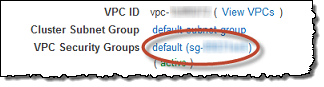
- Under Cluster Properties → VPC Security Groups choose your security group. It will open in the Amazon EC2 console.
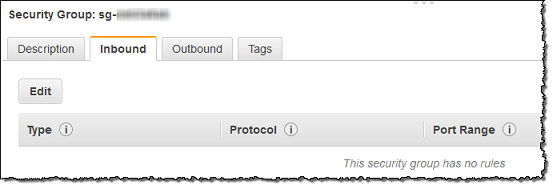
- Choose the Inbound tab.
-
Here you can add a rule that allows traffic into your cluster. You can configure this to accept inbound connections from your Fanar host. Click Edit and then
- For **Type** choose `Custom TCP Rule`- For **Protocol** choose `TCP`- For **Port Range** type the same port number that you used when youlaunched the cluster. The default port for Amazon Redshift is `5439`.Yours may be different.- For **Source** pick `Custom IP` and enter your Fanar instance's IPaddress. If you use hosted Fanar enter `52.71.84.157/32`. This is ourpublic IP address.- Click **Save**